
SalesPop + Thrivecart
How to connect SalesPop with Thrivecart

SalesPop Support
Last Update 3 years ago
If you host landing pages or sell products on Thrivecart, you can connect your account with SalesPop to stream new sales and signups on your Thrivecart pages in real-time. These notifications will help increase your website conversion rates almost instantly!
Step 1 - Install Your SalesPop Pixel
(Follow these instructions for finding your pixel.)
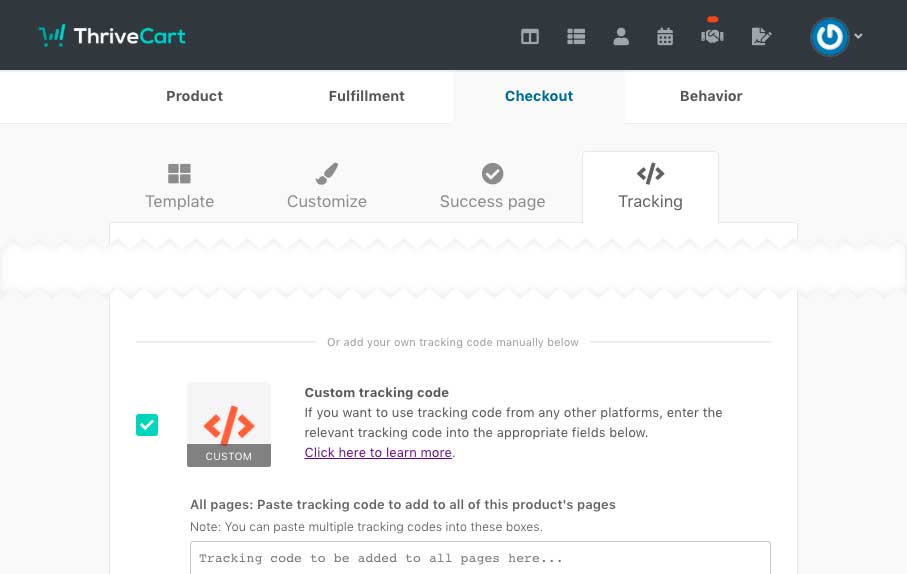
While logged into Thrivecart, Under your product settings, you’ll want to head over to the Checkout tab > Tracking tab.
To show SalesPop notifications on every page of your funnel, paste the SalesPop snippet within All pages section.
*Any codes added to this box will be automatically added to all your checkout pages.*
Step 2 - Capture Data
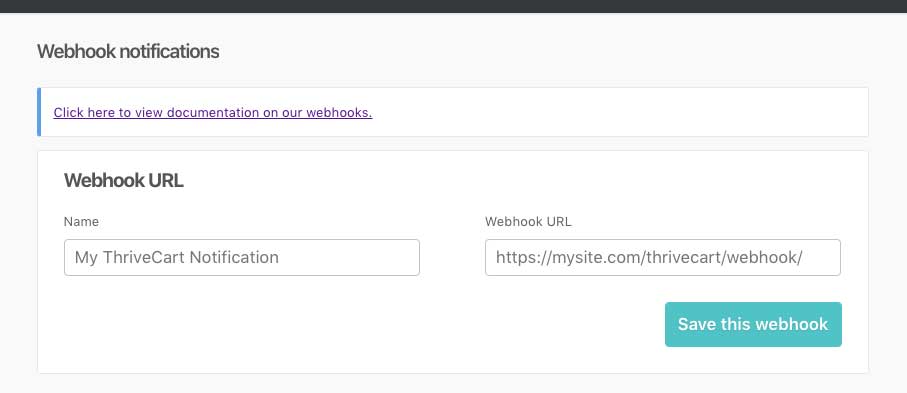
From your ThriveCart account, head to your Settings > API & Webhooks > Webhooks area.
Step 3 - You're done!
Going forward, new "opt-ins" and "sales" from each Funnel will be sent to your SalesPop data feed, and shown on your various Thrivecart pages in real-time.